Assessment Types
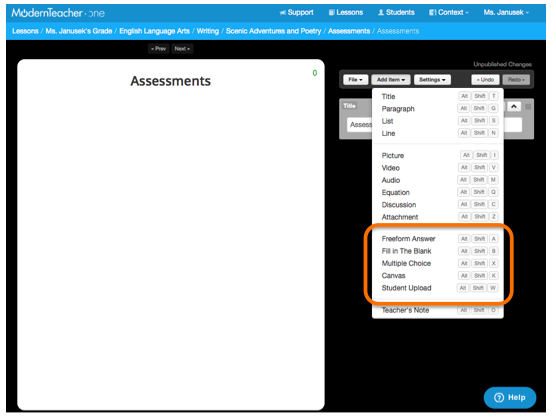
Assessment items can be included throughout the Lesson to check for understanding. In your Add Item menu in the Lesson Creator, you'll find all assessment types: Freeform, Fill in the Blank, Multiple Choice, Canvas, and Student Upload.
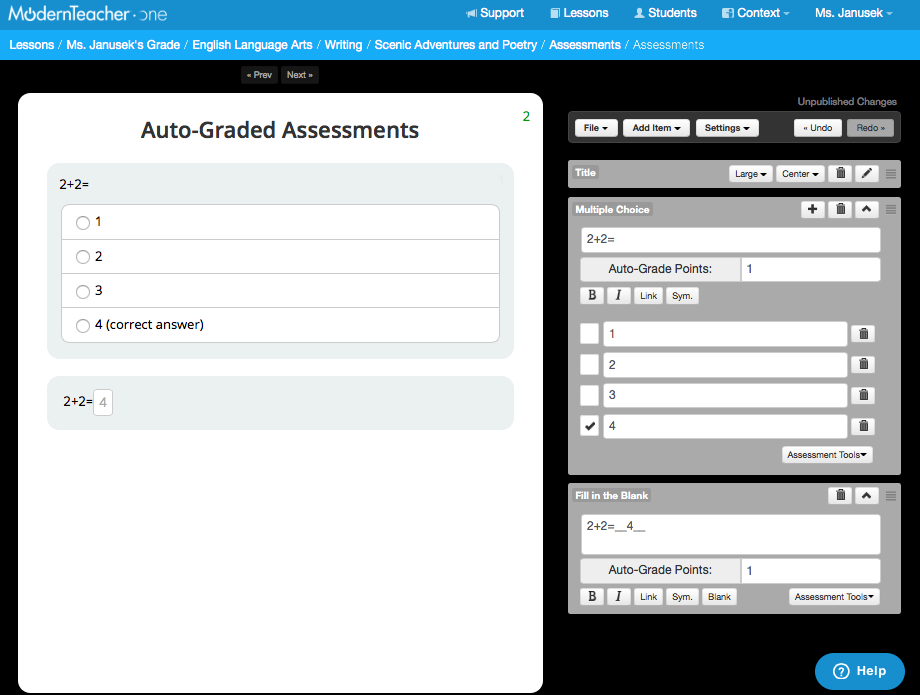
Auto-Graded Assessments: Multiple Choice and Fill in the Blank
Multiple Choice and Fill in the Blank assessment questions can be auto-graded. Be sure to use the checkbox on Multiple Choice questions to indicate the correct answer(s). Indicate the correct answer in the blank when creating Fill in the Blank questions by highlighting the word you want students to fill in and selecting the Blank button. If you'd like multiple answer options to be graded as correctly on a Fill in the Blank question, you can separate the options with a vertical bar (example: 4|four).
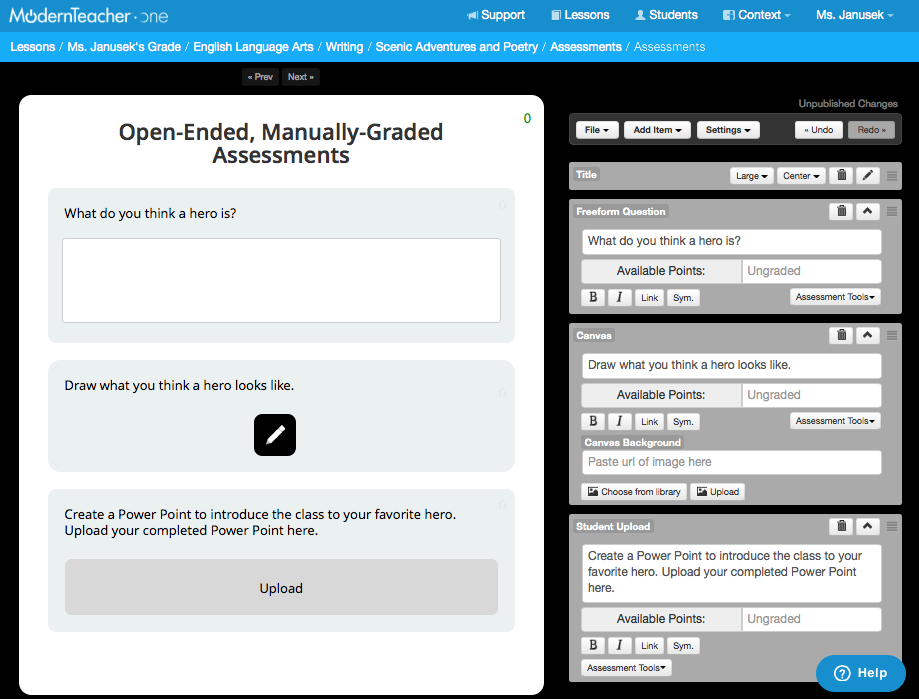
Open-Ended, Manually-Graded Assessments: Freeform, Canvas, and Student Upload
Freeform, Canvas, and Student Upload assessment questions can be manually-graded. Enter a prompt for your students to respond to. Freeforms allow students to respond by typing, Canvas allows drawing or handwriting in a blank white space or on top of a background, and Student Upload allows students to upload files in response to a prompt, including Word Docs, Power Points, MP4s, etc.
Points
Firstly, teachers can assign Points to assessment questions. Adding Points to Freeform and Canvas questions allows teachers to manually grade students' work on a sliding scale. Adding Points to Multiple Choice or Fill in the Blank questions changes the weight of the question. Note that either all or none of the points will be assigned for Multiple Choice and Fill in the Blank questions. Partial points on these auto-graded questions are not yet available.

Assessment Tools
Teachers can also link assessment questions to Standards or Objectives by clicking on Assessment Tools in the bottom right corner of Assessment item editing boxes.
Note that this can only be done if you have already included Standards and Objectives in your Lesson Plan, available in the Settings Gear on any Lesson.

When you link an assessment item to a Standard, you'll be able to track the frequency and student mastery of that standard with the Standards Summary and Standard Scores features.
Comments