Some users have the ability to push Professional Learning (PL) content to multiple schools at once! This feature allows you to share Professional Learning content with teachers across the district.
Who can Push PL content?
- District Managers, who can manage Professional Learning and the Lesson Engine for the whole district
- District Facilitators, who can manage Professional Learning for the whole district
- School Managers and Facilitators if they are are assigned to manage Professional Learning at multiple schools
What is "PL content"?
- "PL content" is any Course, Unit, or Lesson in the Professional Learning context of Modern Teacher ONE, available to Managers and Facilitators in the Create & Manage view. This includes Modern Teacher's default Teacher as Architect content, as well as school- or district-created Professional Learning content.
How do you Push PL content?
- Please read below for a step-by-step tutorial on Pushing PL!
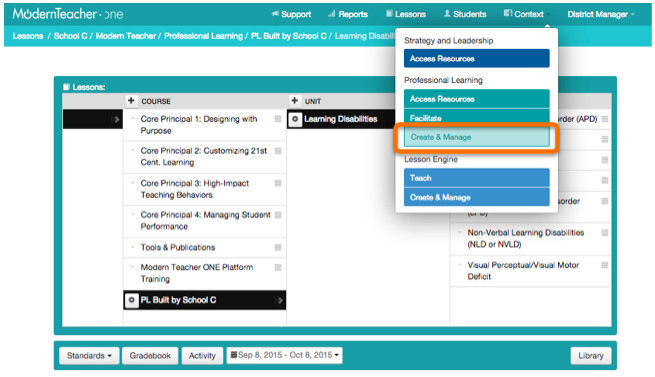
Step 1: Make sure you're in the Create & Manage view of Professional Learning.
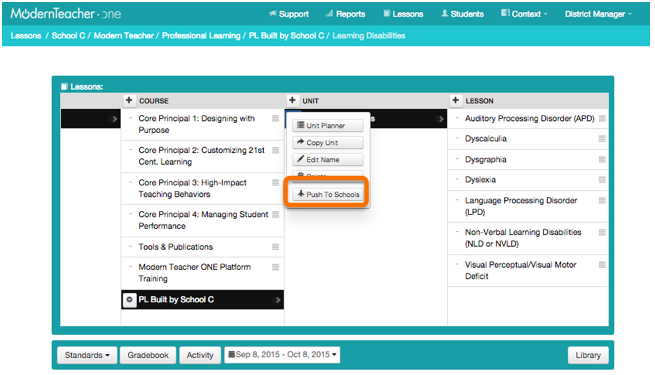
Step 2: Access the dropdown menu via the settings cog on any Lesson, Unit, or Course you'd like to share, and choose to Push to Schools.
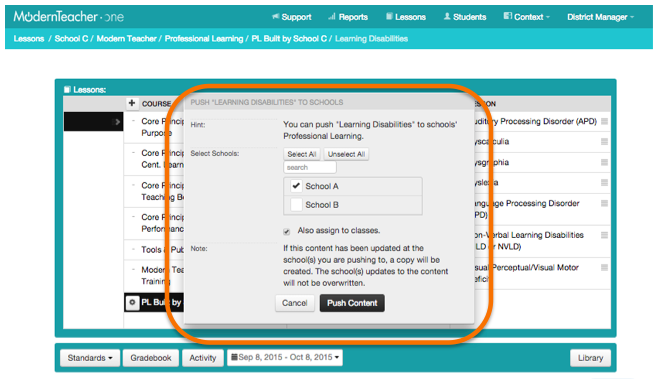
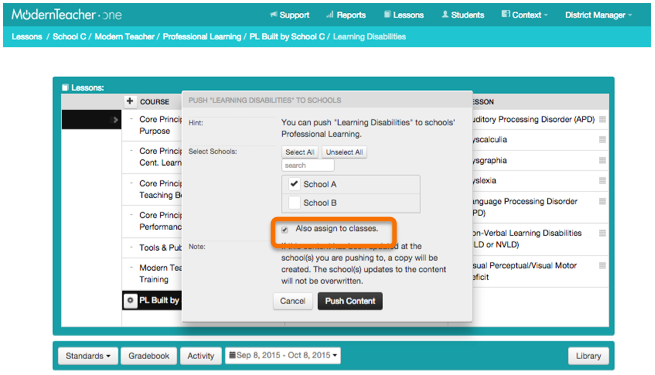
Step 3: A pop-up will appear with several options. Please read the options carefully.
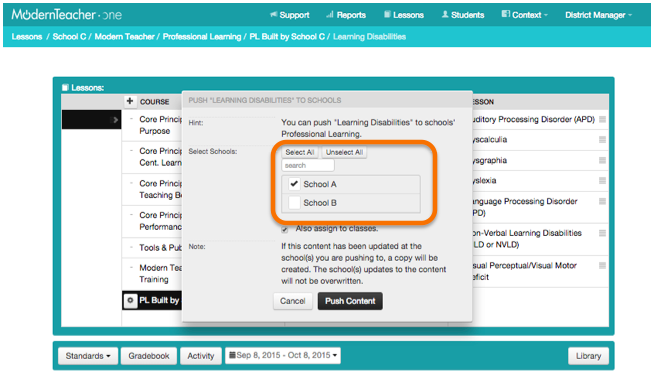
Step 4: Select the schools you'd like to receive your PL content. You can use the Search tool to find specific schools, Select All, or manually click the checkbox to indicate which schools you'd like to push to.
Step 5: Choose whether or not you'd like to auto-assign the content to the default Professional Learning class at your selected schools.
- If you leave this box checked, all teachers at the school will be able to complete the content as learners when they go to Access Resources in Professional Learning in their accounts.
- If you un-check this option, only the Managers and Facilitators at your selected schools will be able to see this content in the Create & Manage view of their school's PL. They can then edit the content and choose when to assign it to the teachers.
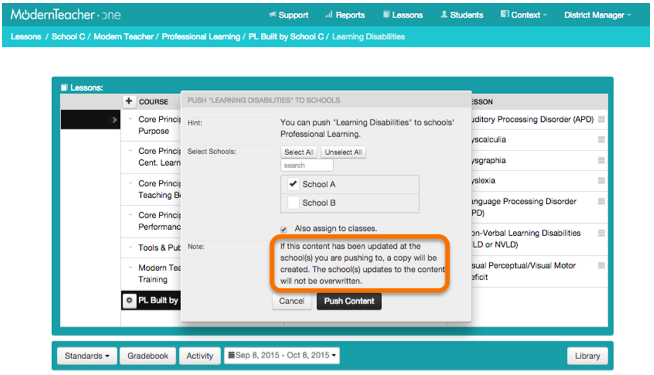
Note: Note that if this content is already available at your selected schools, such as the default Teacher as Architect content or previously pushed content, the schools' customizations to that content will not be overwritten by your new content.
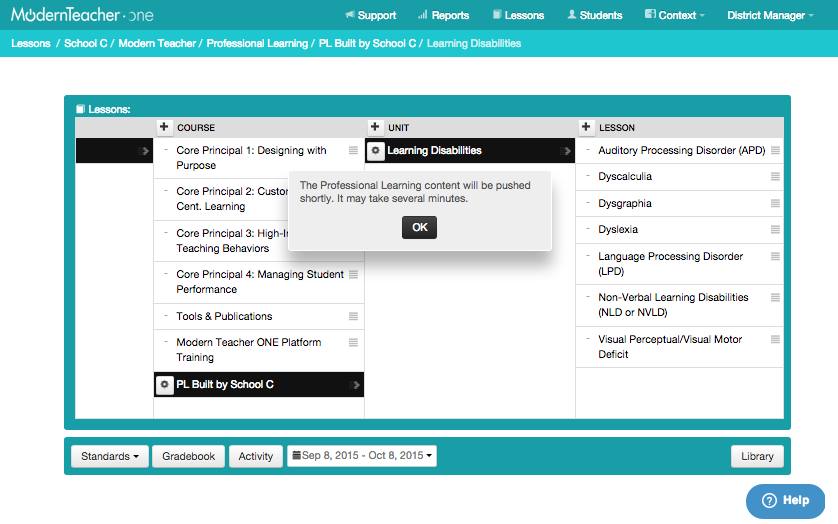
Step 6: Choose to Push Content, and it will appear in your selected schools! The content will appear in the same location (same Course and Unit) in your selected school(s) as the school you pushed it from.
If you need any additional assistance with this feature, please contact Support!
Comments