Manually-graded assessment questions (Freeform, Canvas, and Student Upload) allow the students to respond to more open-ended questions. The teacher can review and assign a score based on the number of Points made available for each question.
Freeform
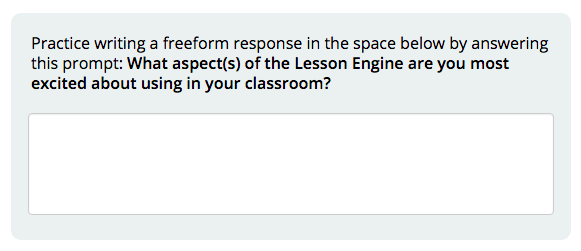
Freeform questions allow students to complete short-answer or essay style prompts. They can write as little or as much as desired - the text box expands as students continue writing.
Example:
Canvas
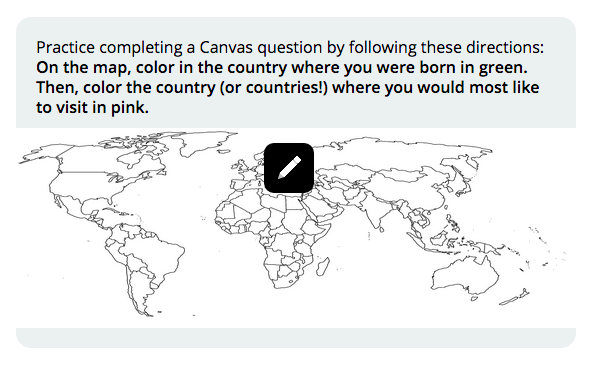
Canvas questions allow students to draw on either a blank space or a background picture. On touch screen devices, students can use their finger or a stylus pen. On regular computer screens, students can use a mouse.
Clicking on the pencil icon will expand the space. Students will then have the option to select a color, erase, undo, redo, delete (trash can), or save (check mark) their work by using the icons just below the prompt.
Example:
Student Upload
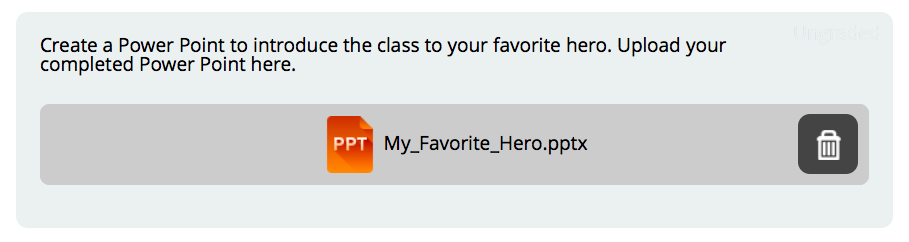
The Student Upload assessment type allow students to upload a file from their computers in response to a prompt. File types include Word Docs, Power Points, PDFs, Excel or CSV files, MP4s, MP3s, and image files.
Example of Student Upload prompt, uncompleted: 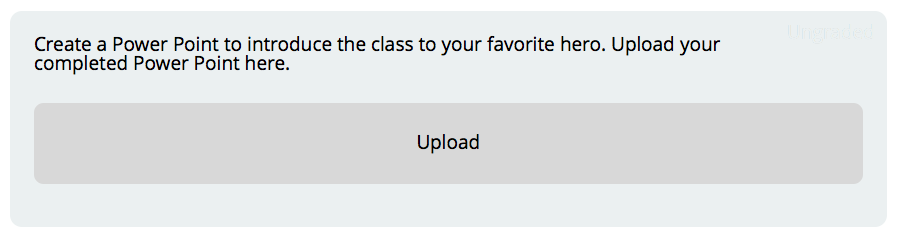
Example of Student Upload with completed, uploaded file:
Comments